A tour of the screens

Pick a capability and click the steps; click an image to enlarge it. Screens are shown with sample data; the application interface is in Turkish.

OPEXIA · ROAD
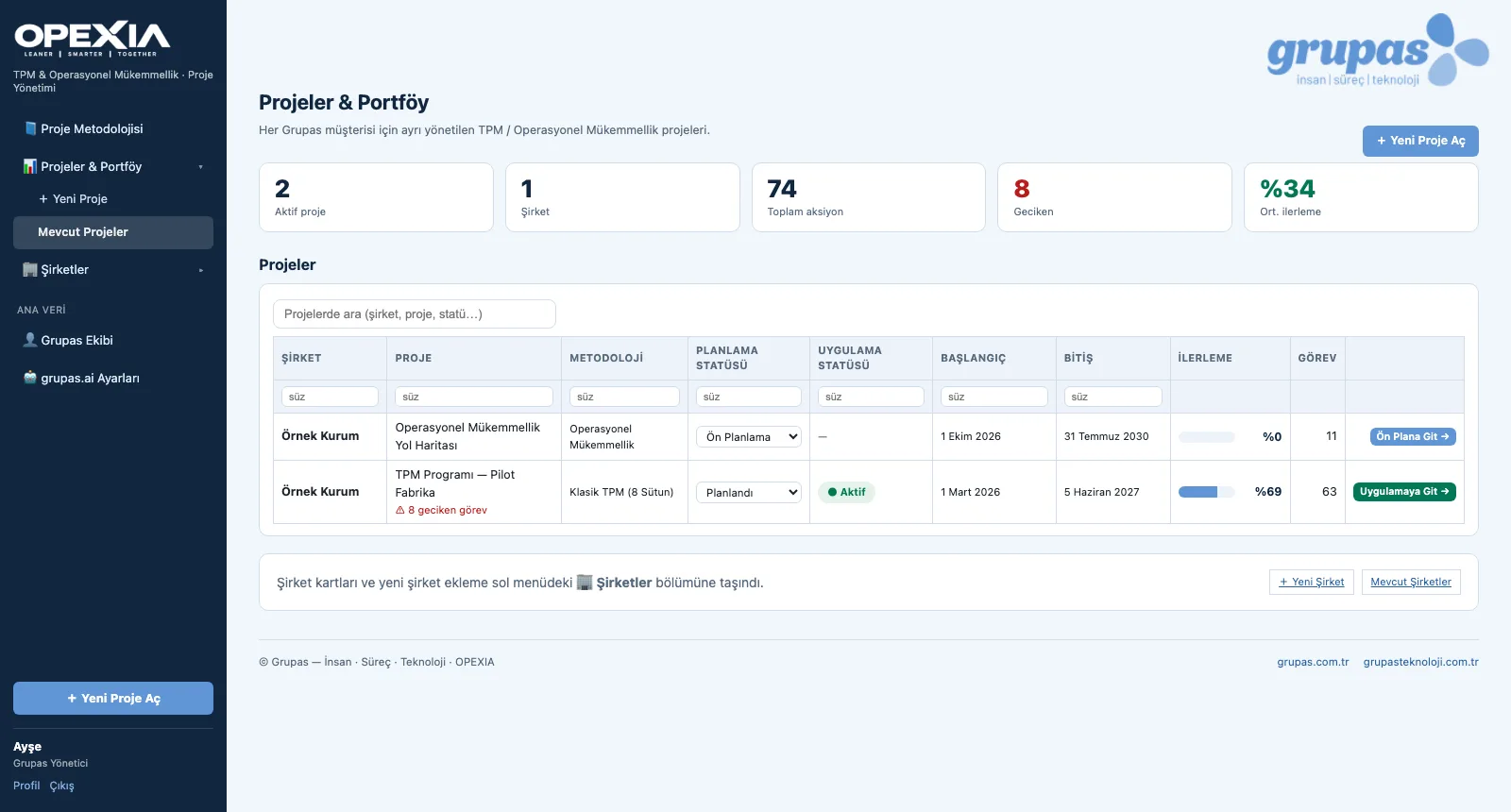
ROAD — See the portfolio
ROAD · Explore

Screens are shown with sample data; the application interface is in Turkish.

ROAD · Choose

TPM and OpEx Roadmaps

Register the customer, choose the model, set up the program.
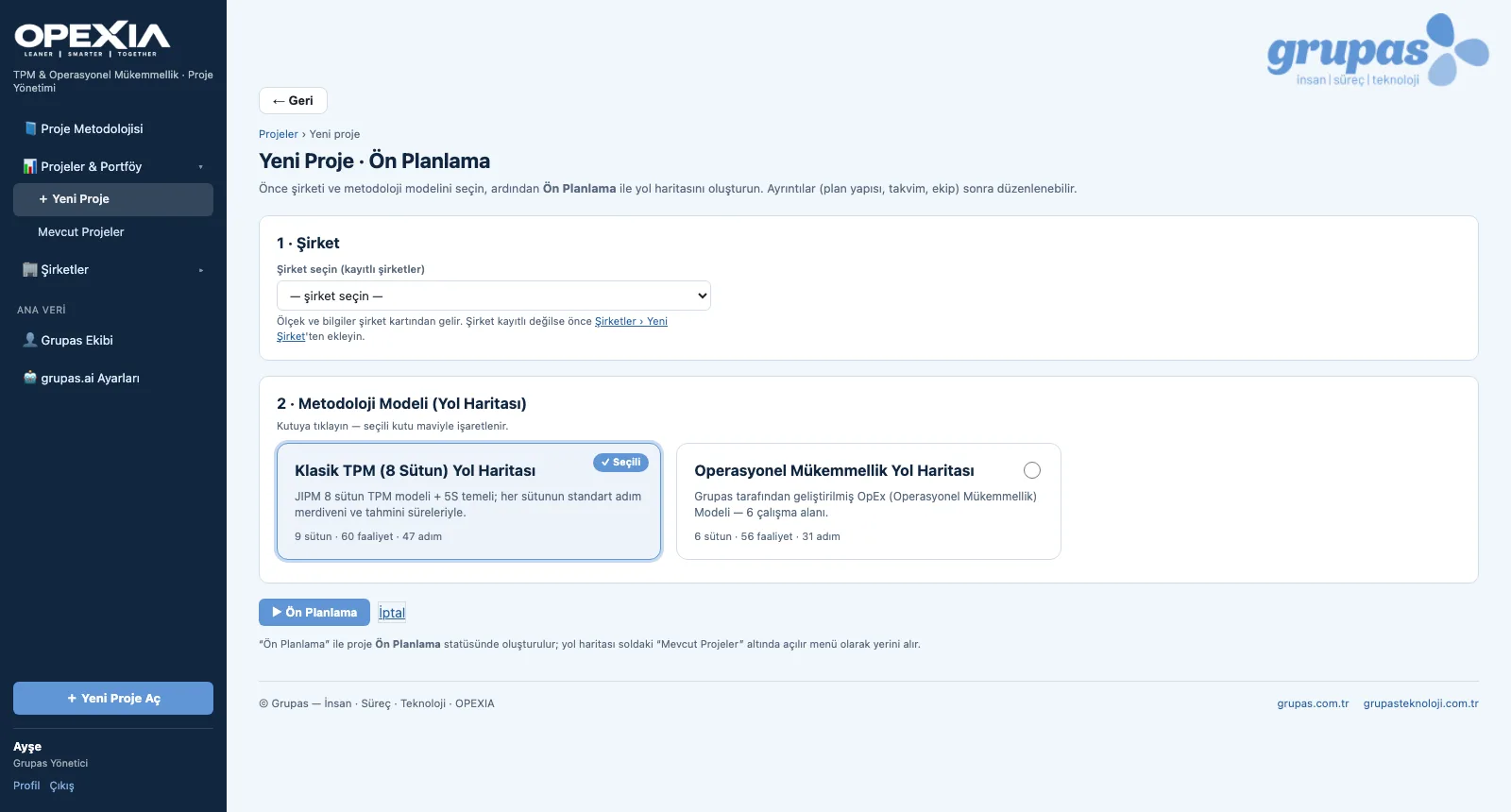
ROAD — See the portfolio
1. See the portfolioThe Projects & Portfolio screen shows every customer's projects, planning and implementation status, progress and overdue tasks together.
ROAD — Choose the model
2. Choose the modelIn a new project choose the company and the roadmap model; Pre-planning sets up the program skeleton.
ROAD — Review the methodology
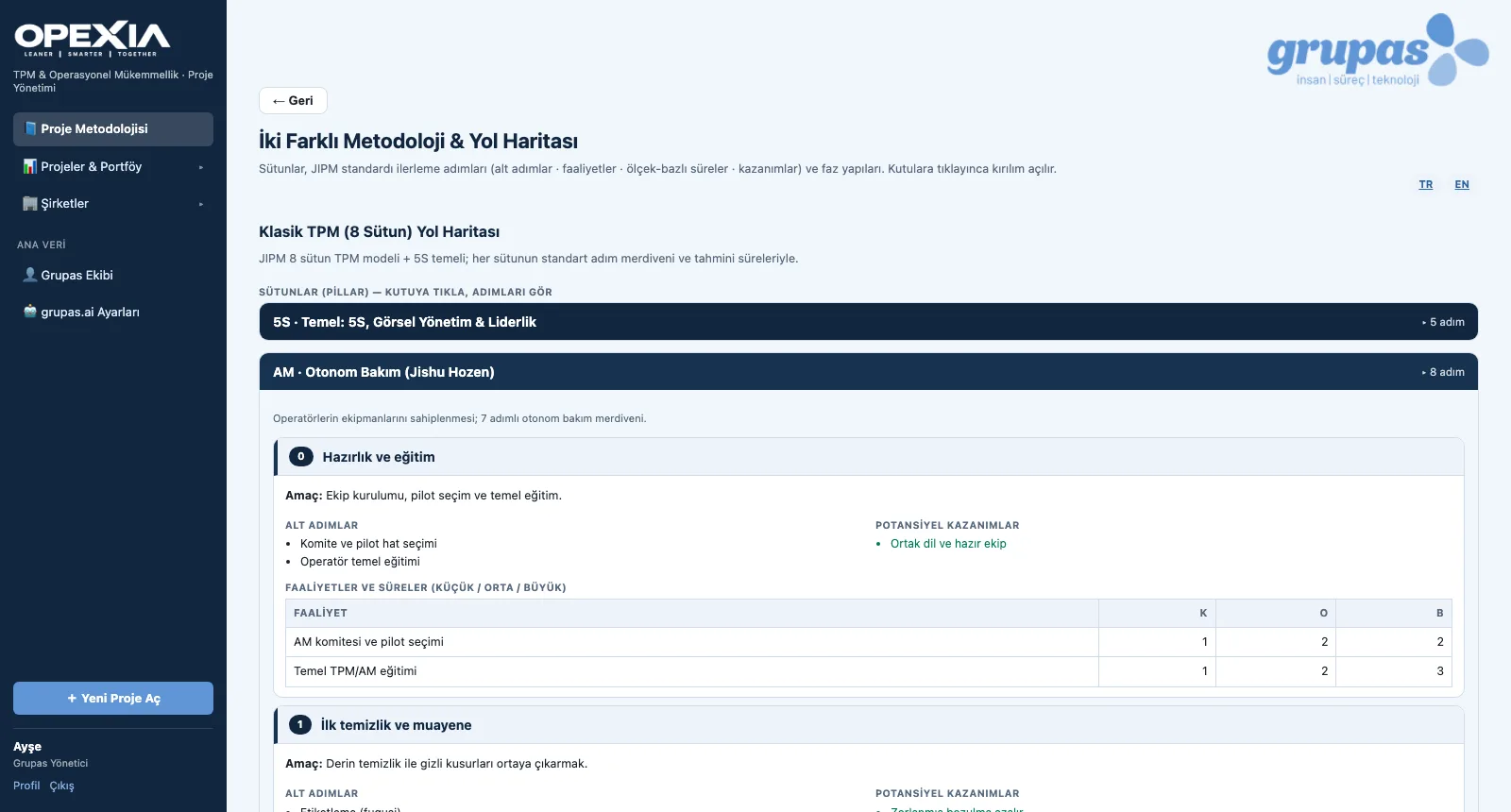
3. Review the methodologyThe guide lists each pillar's steps, objectives, sub-steps, benefits and small / medium / large durations.
ROAD — See the phase structure
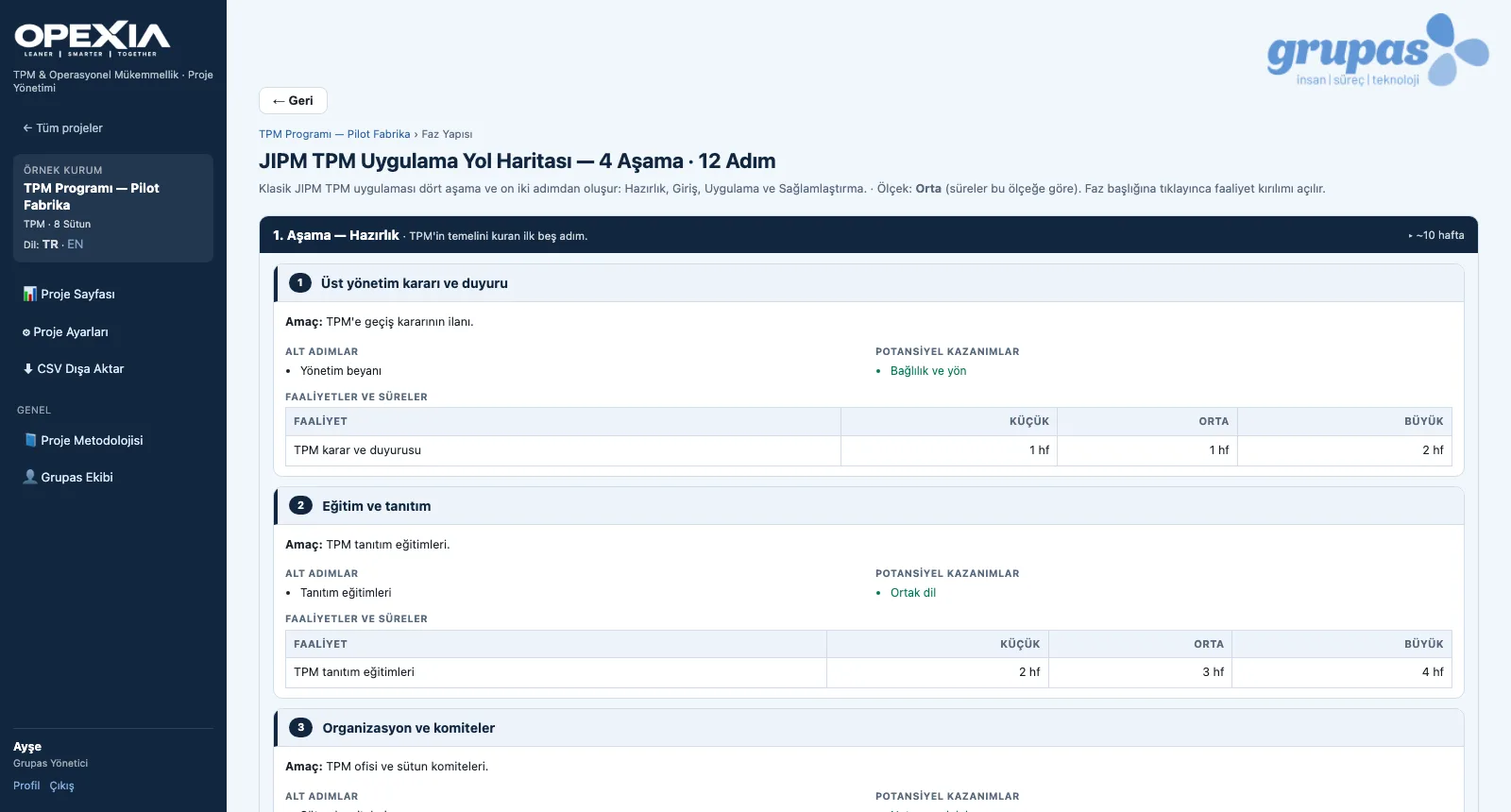
4. See the phase structureJIPM TPM implementation in 4 stages and 12 steps, opened as a reference with each step's activities and durations.

ROAD · Explore

STEP · Structure

Pillars and Step Ladders

Open the pillar, review the step, record progress.
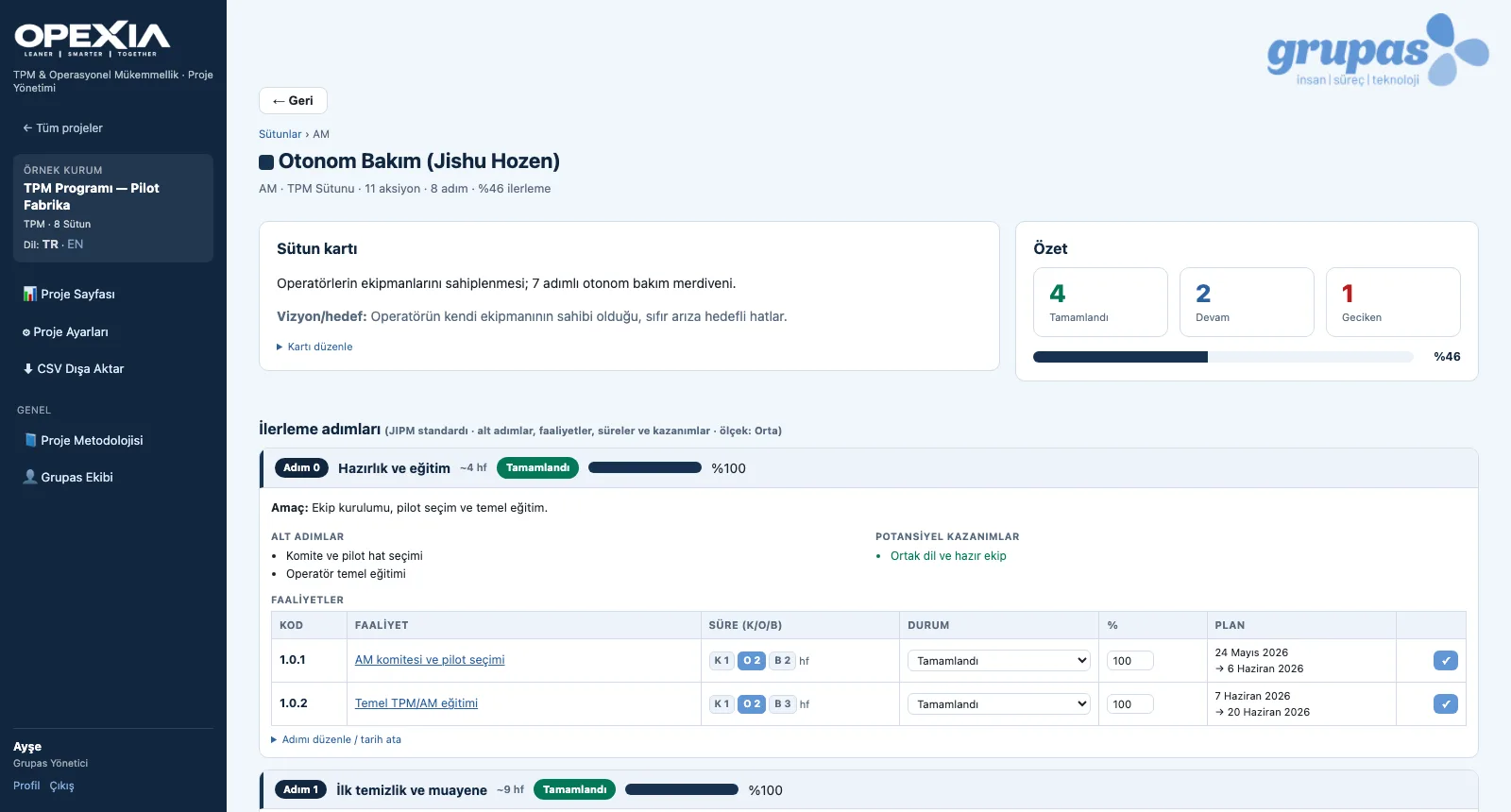
STEP — Pillars at a glance
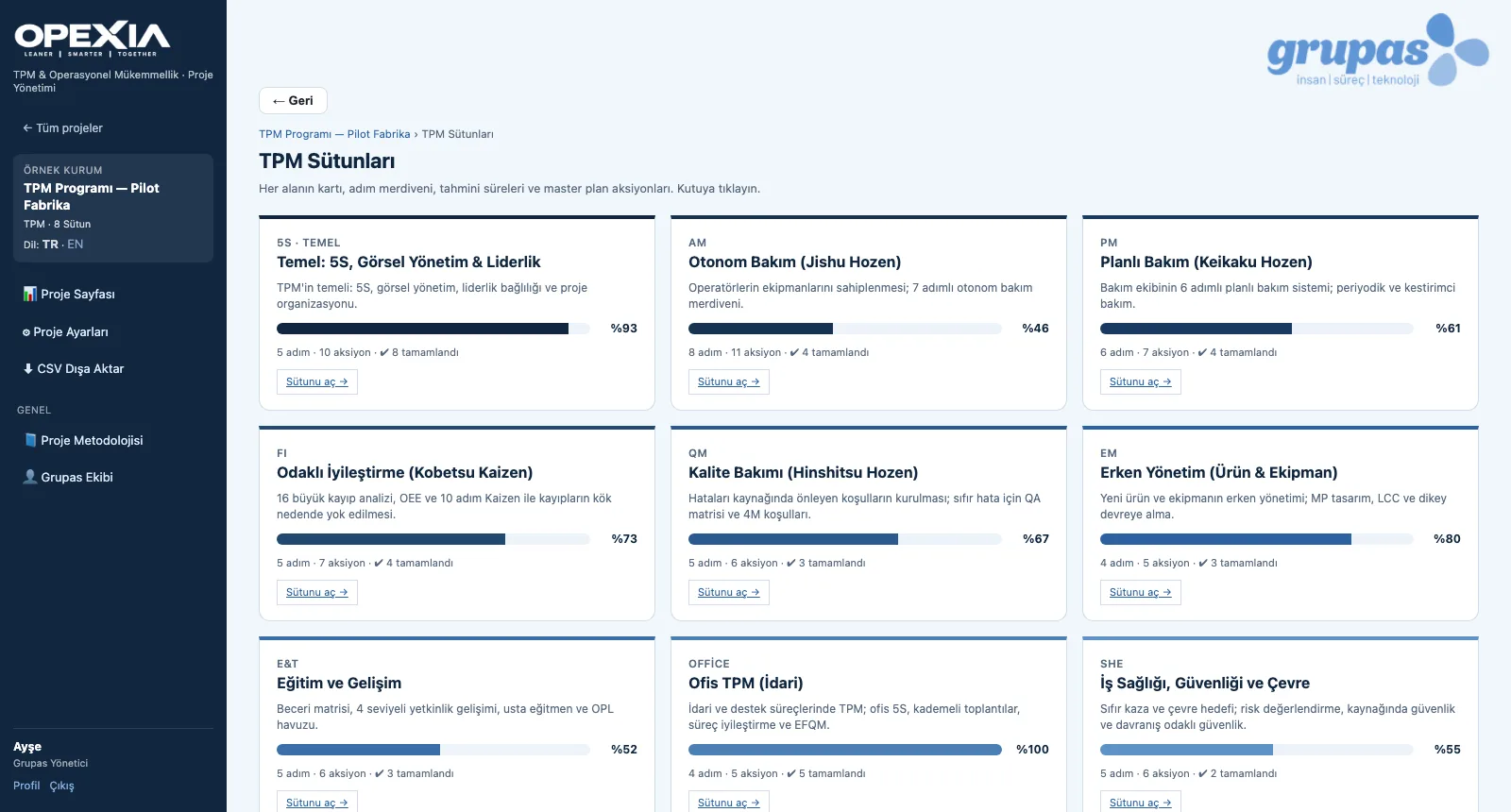
1. Pillars at a glanceThe TPM Pillars screen shows each area's progress, steps, actions and completed actions card by card.
STEP — Follow the step ladder
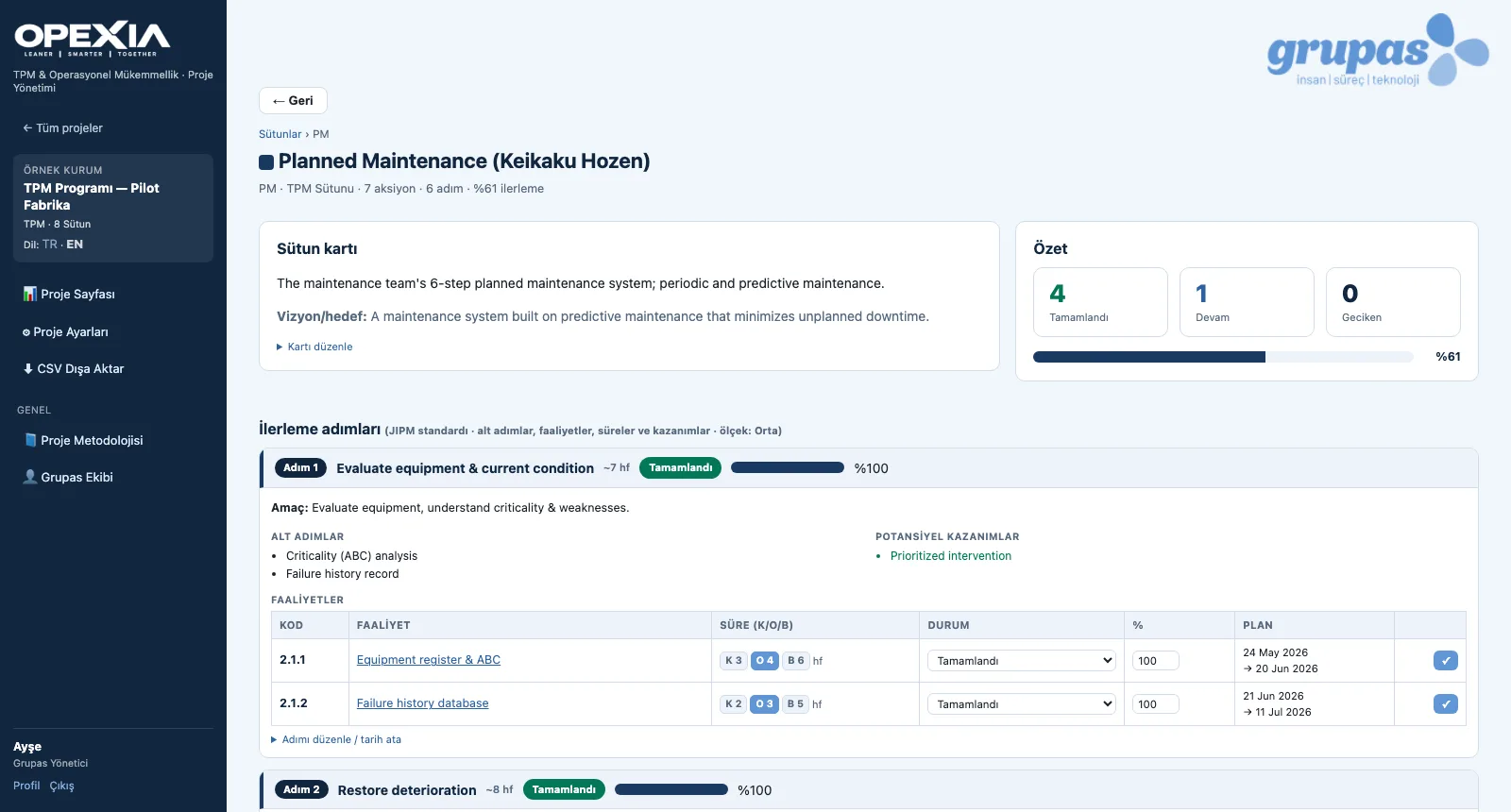
2. Follow the step ladderWrite the vision on the pillar card; follow each step's objective, sub-steps, benefits and activities with their status.
STEP — Work with English content
3. Work with English contentWith the project language set to EN, pillar, step and activity content is shown in English.

STEP · Explore

PLAN · Plan

Master Plan, Gantt and Budget

Update the plan, see the schedule, track the effort.
PLAN — Update the master plan
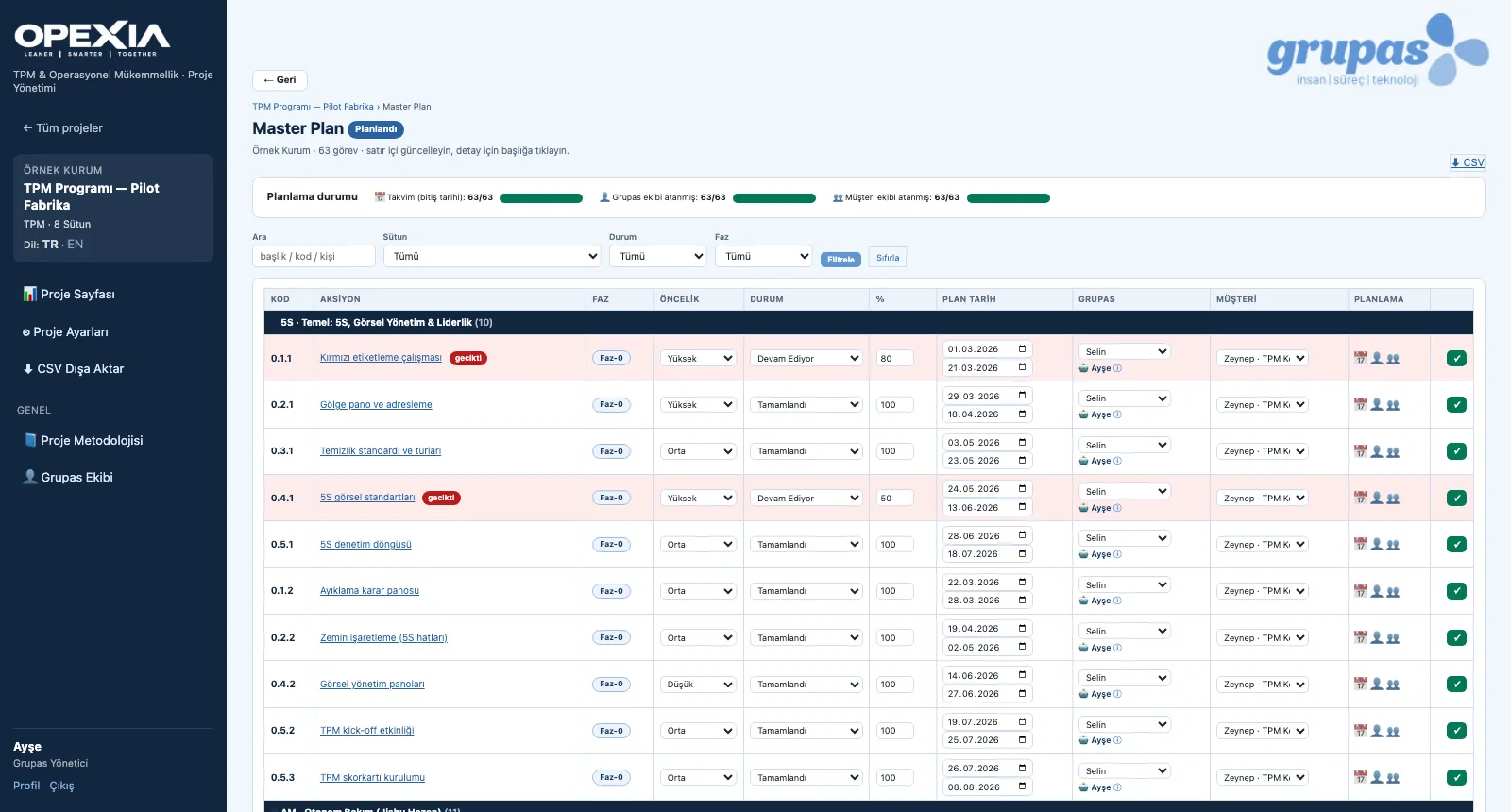
1. Update the master planChange status, priority, progress, dates and owners inline; filter by pillar, status or phase.
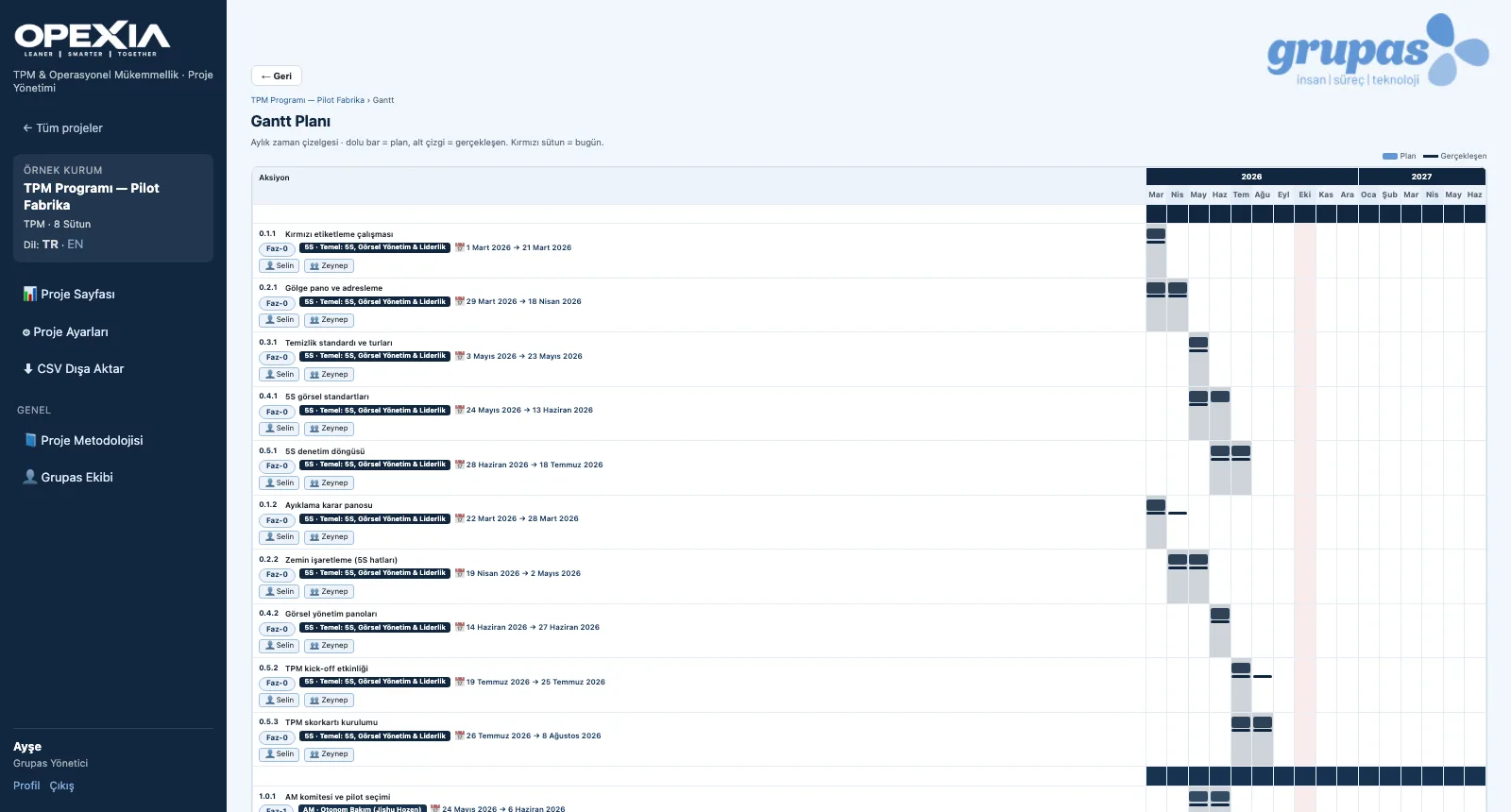
PLAN — See the schedule in the Gantt
2. See the schedule in the GanttIn the monthly timeline the solid bar is the plan, the underline the actual and the red column today.
PLAN — Track budget and man-days
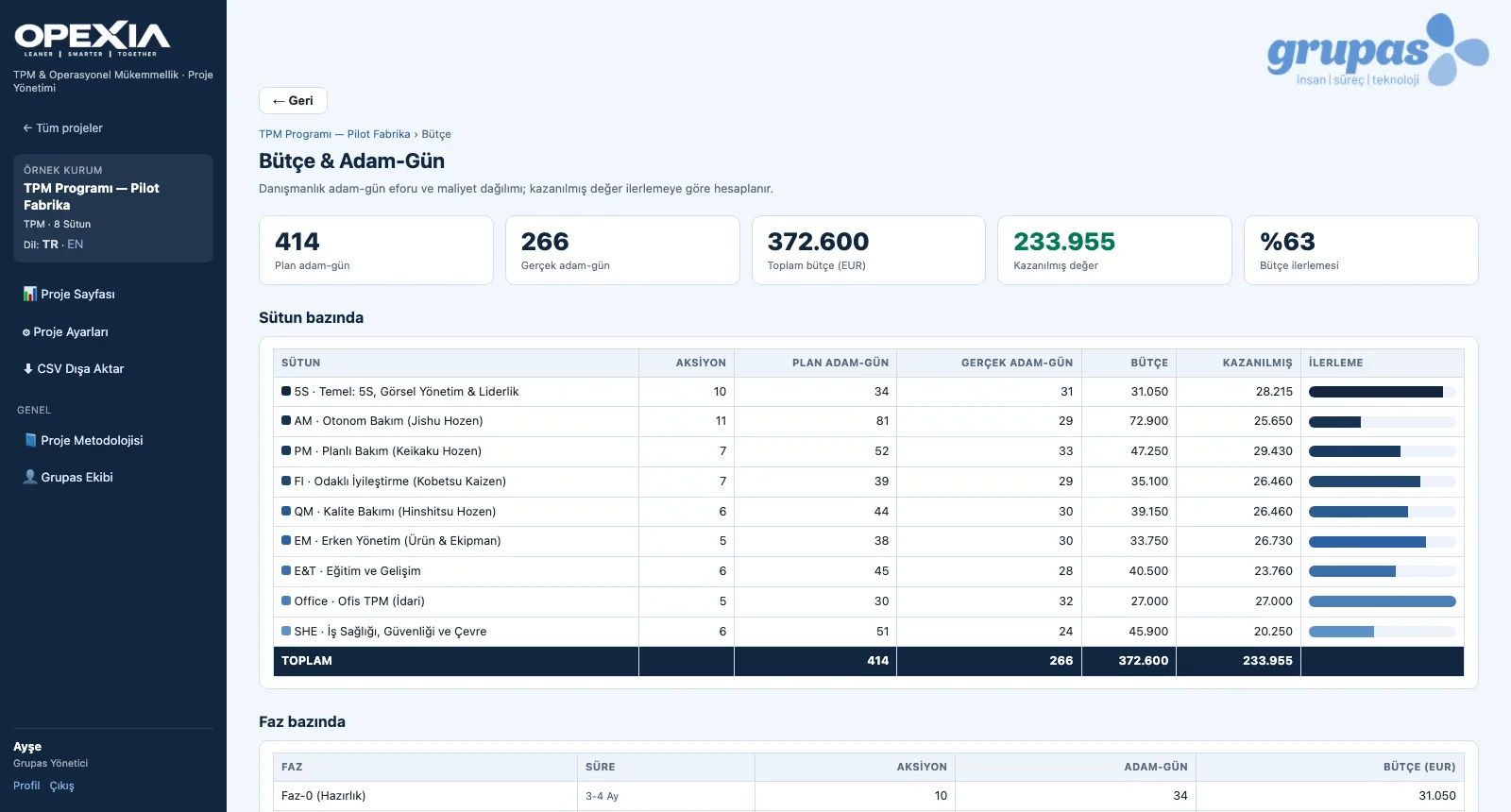
3. Track budget and man-daysPlanned and actual man-days, budget and earned value are totalled per pillar and phase.

PLAN · Explore

TRACK · Track

Implementation Tracking

Open the summary, read the dashboard, move tasks forward.
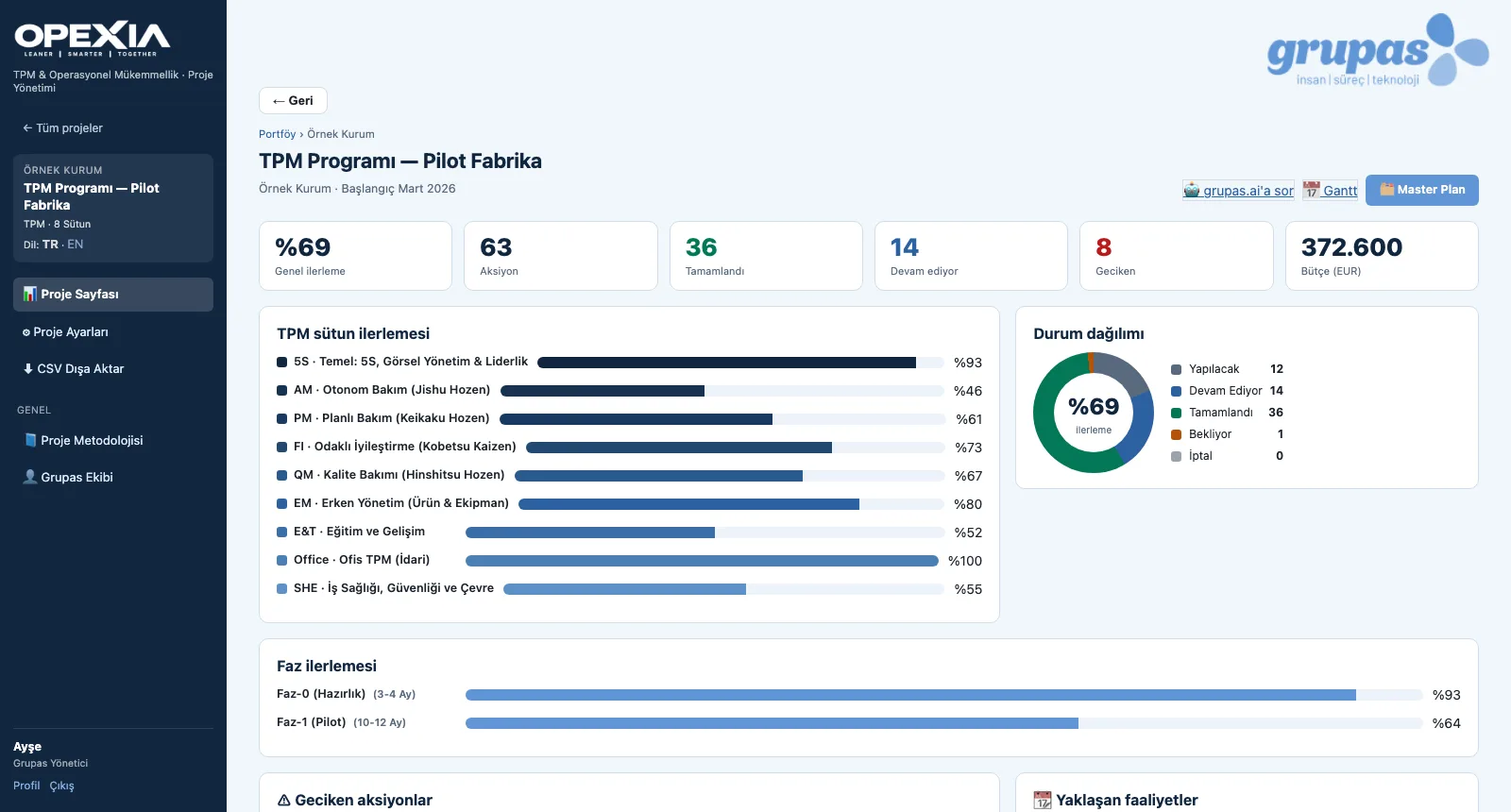
TRACK — Open the project page
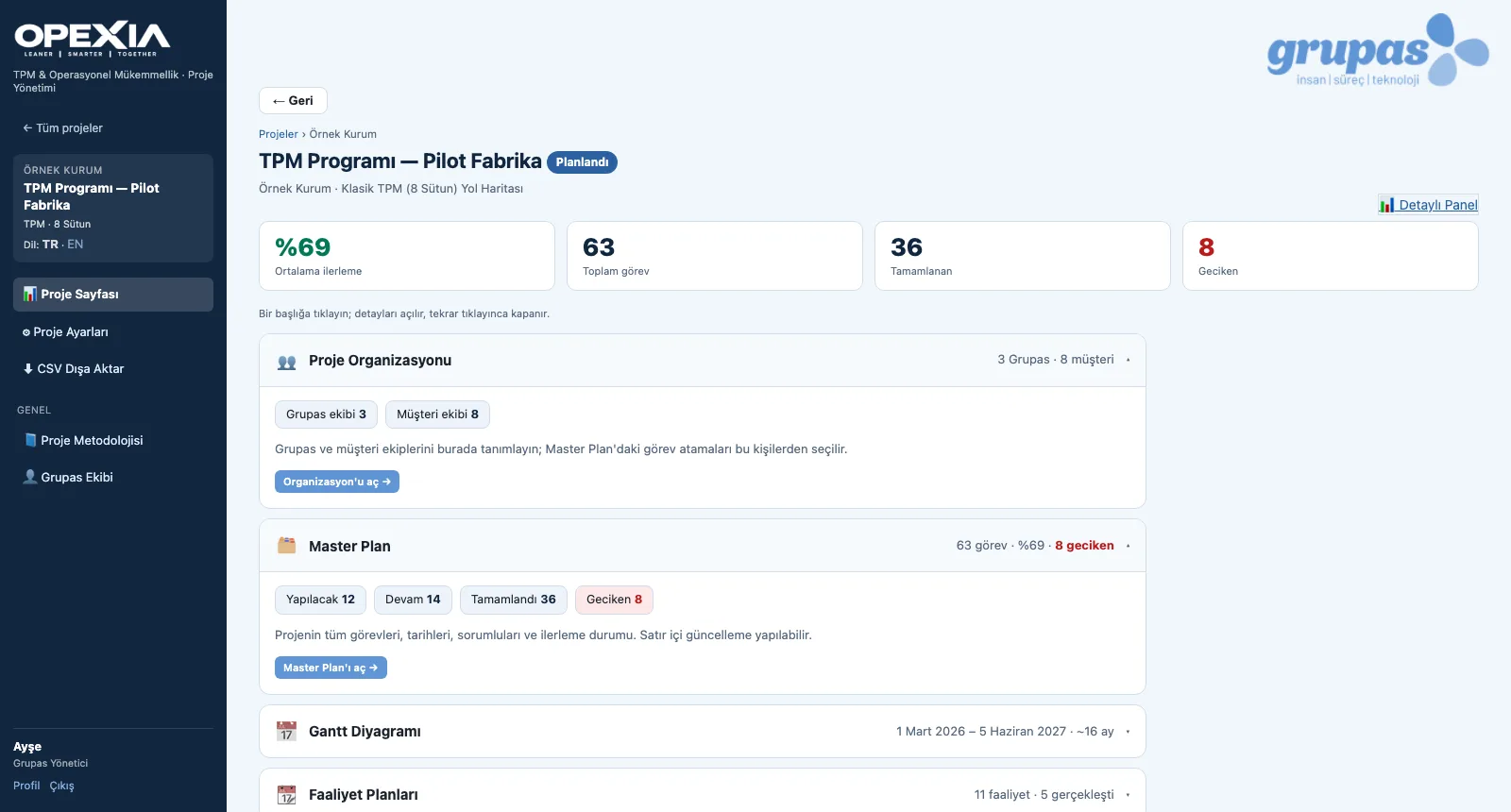
1. Open the project pageAverage progress, total, completed and overdue tasks; organization, master plan, Gantt and activity summaries on one page.
TRACK — Read the dashboard
2. Read the dashboardPillar progress, status distribution, phase progress and budget; below them overdue actions and upcoming activities.
TRACK — Move tasks on the Kanban
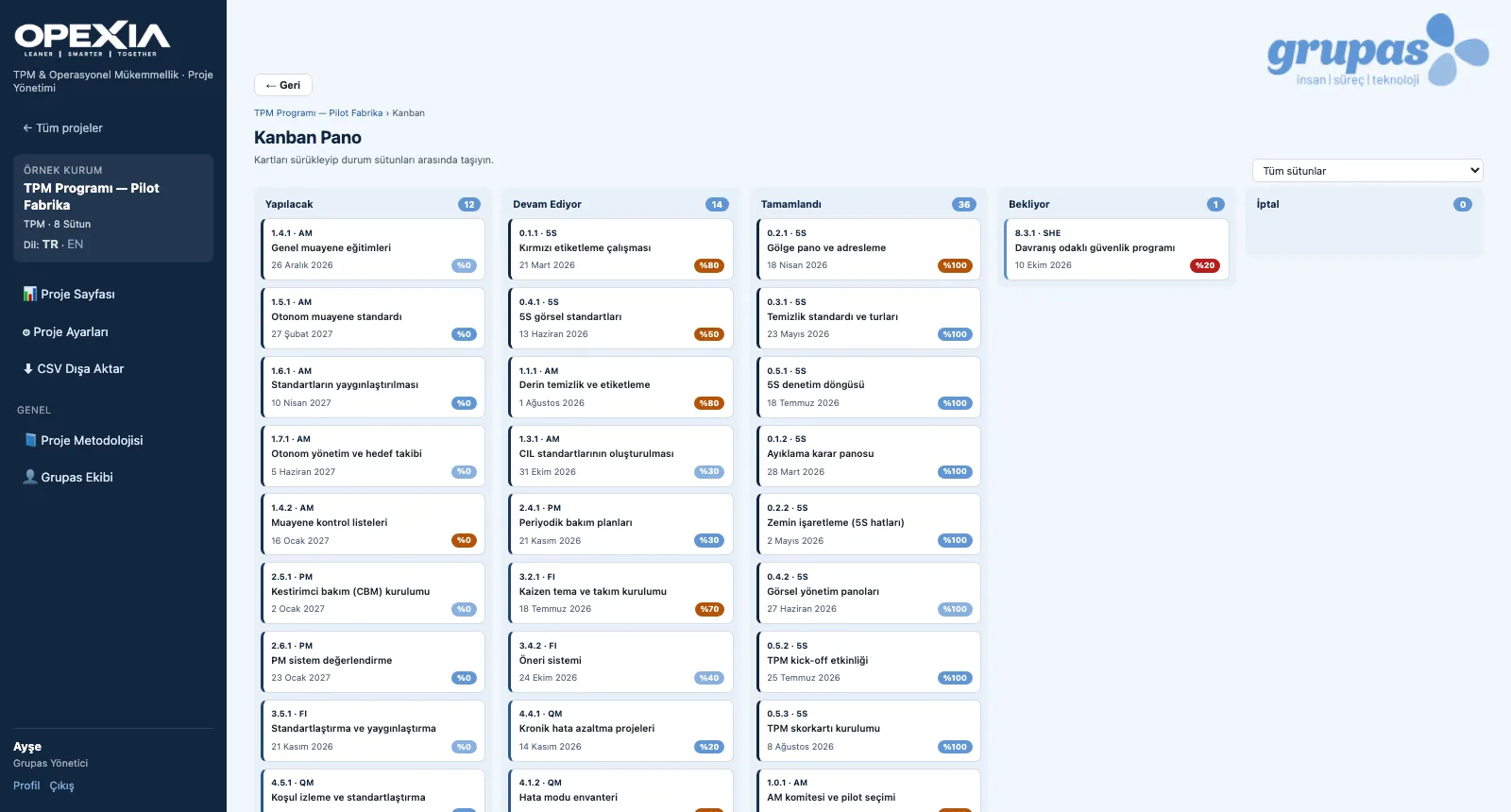
3. Move tasks on the KanbanDrag cards between status columns; filter the board by pillar.
TRACK — Record the actual progress
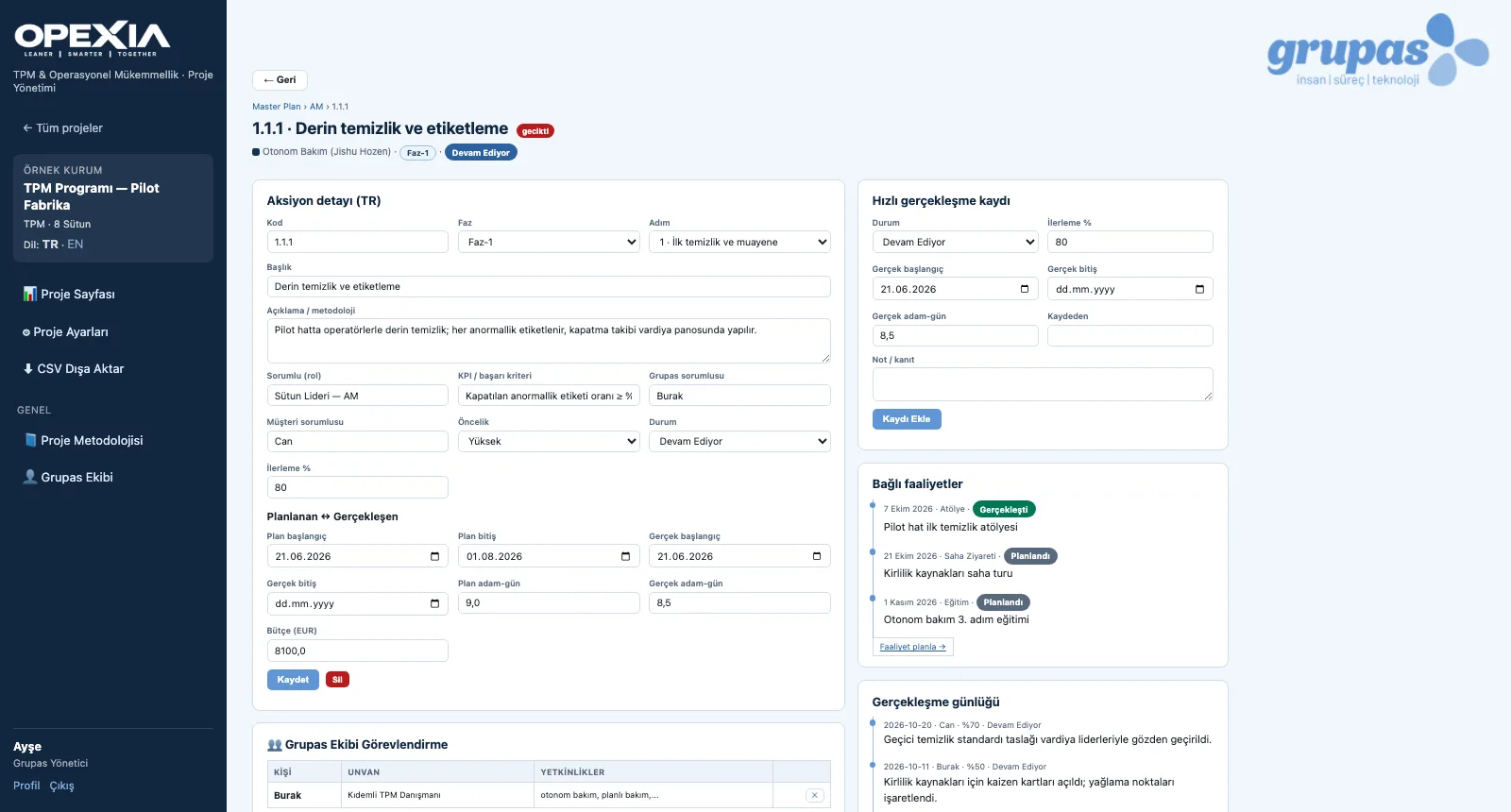
4. Record the actual progressIn the action detail enter actual dates, man-days and a note; each entry is added to the progress log.

TRACK · Explore

TEAM · Organize

Organization and Activity Plans

Build the team, plan the activities, let everyone follow from their own dashboard.
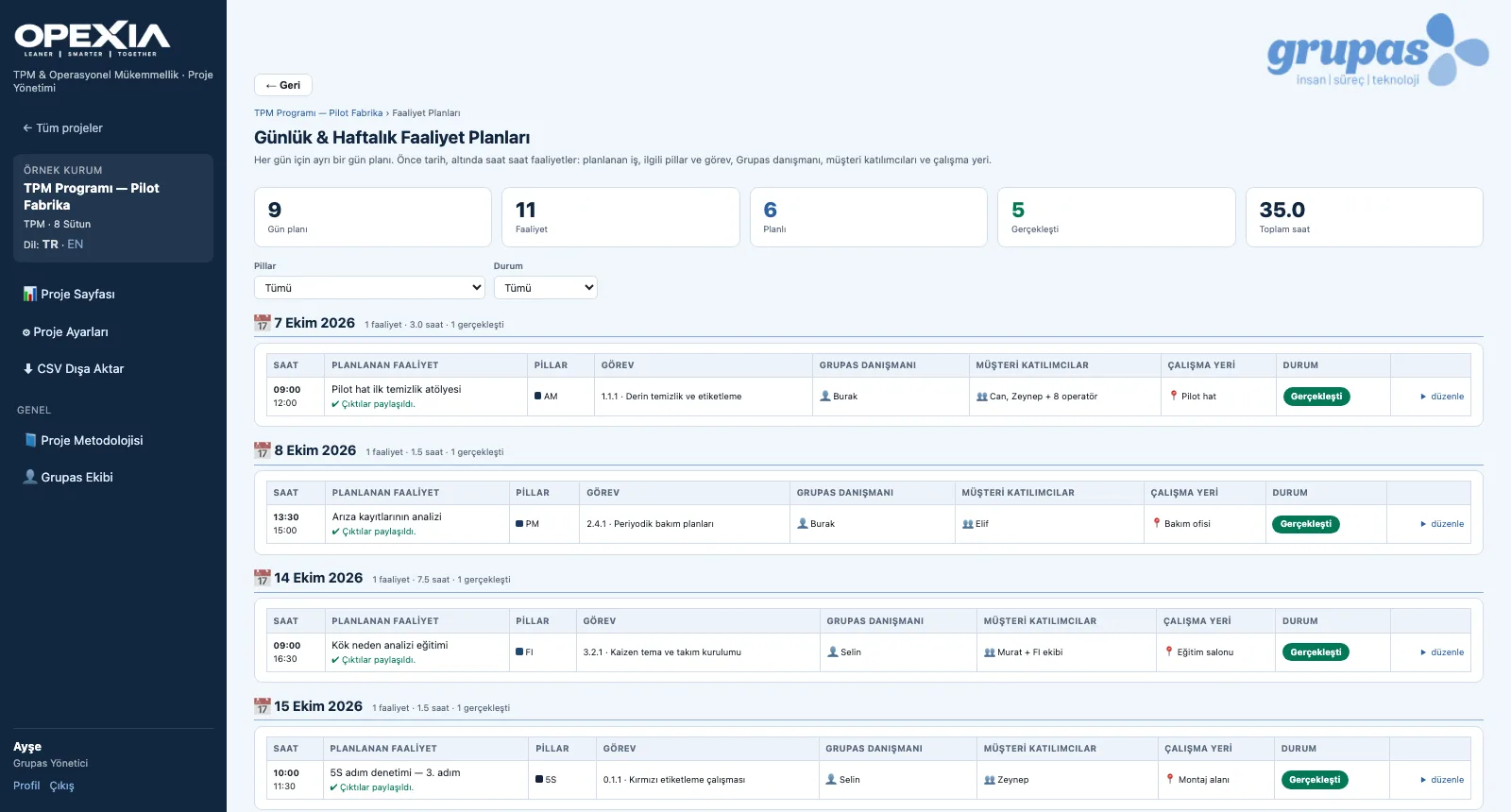
TEAM — Define the organization
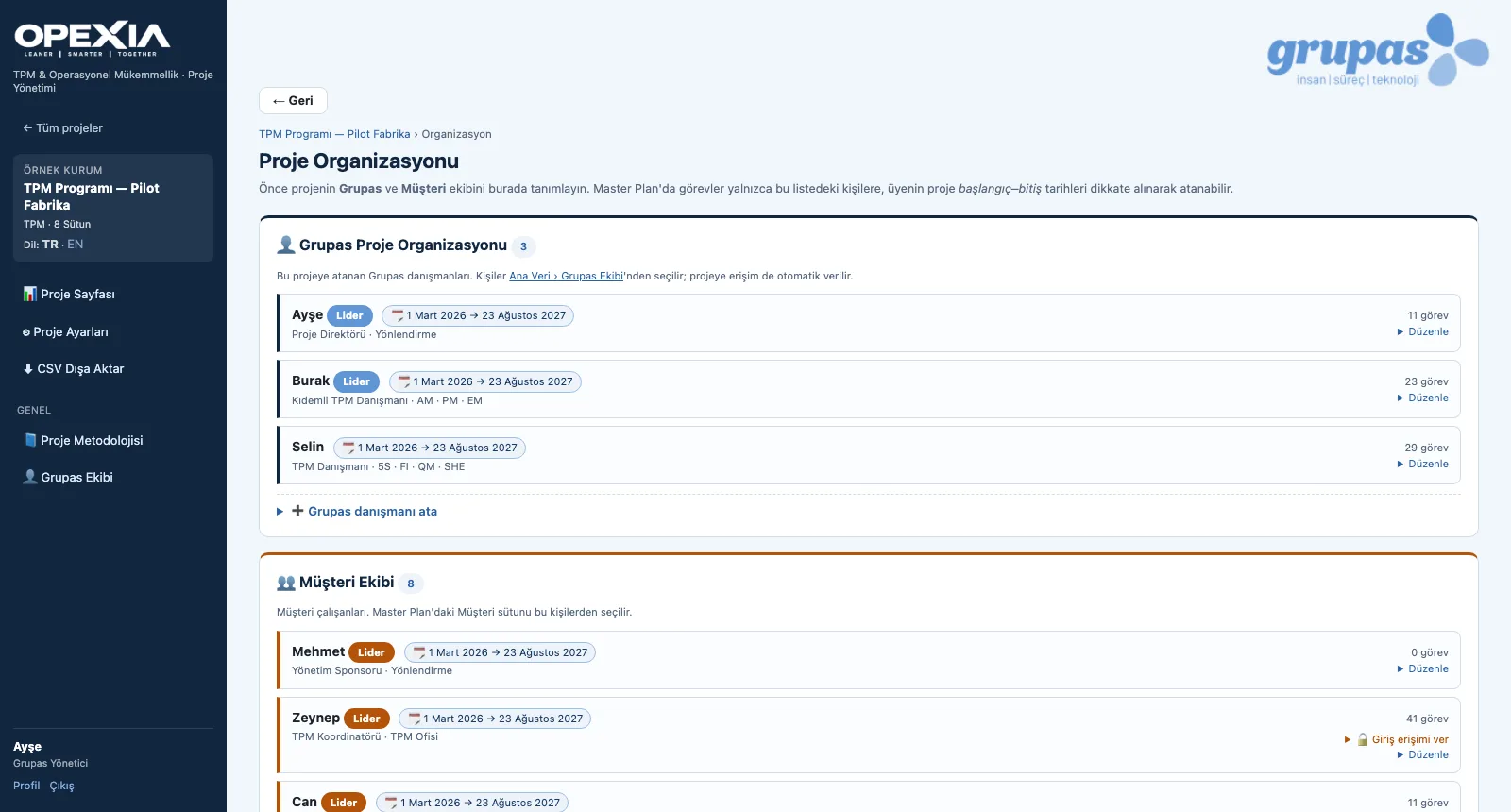
1. Define the organizationAdd Grupas consultants and the customer team with roles, committees and project periods; mark the leaders.
TEAM — Plan the activities
2. Plan the activitiesHour-by-hour activities for each day: type, pillar, task, consultant, customer participants, location and status.
TEAM — Use the personal dashboard
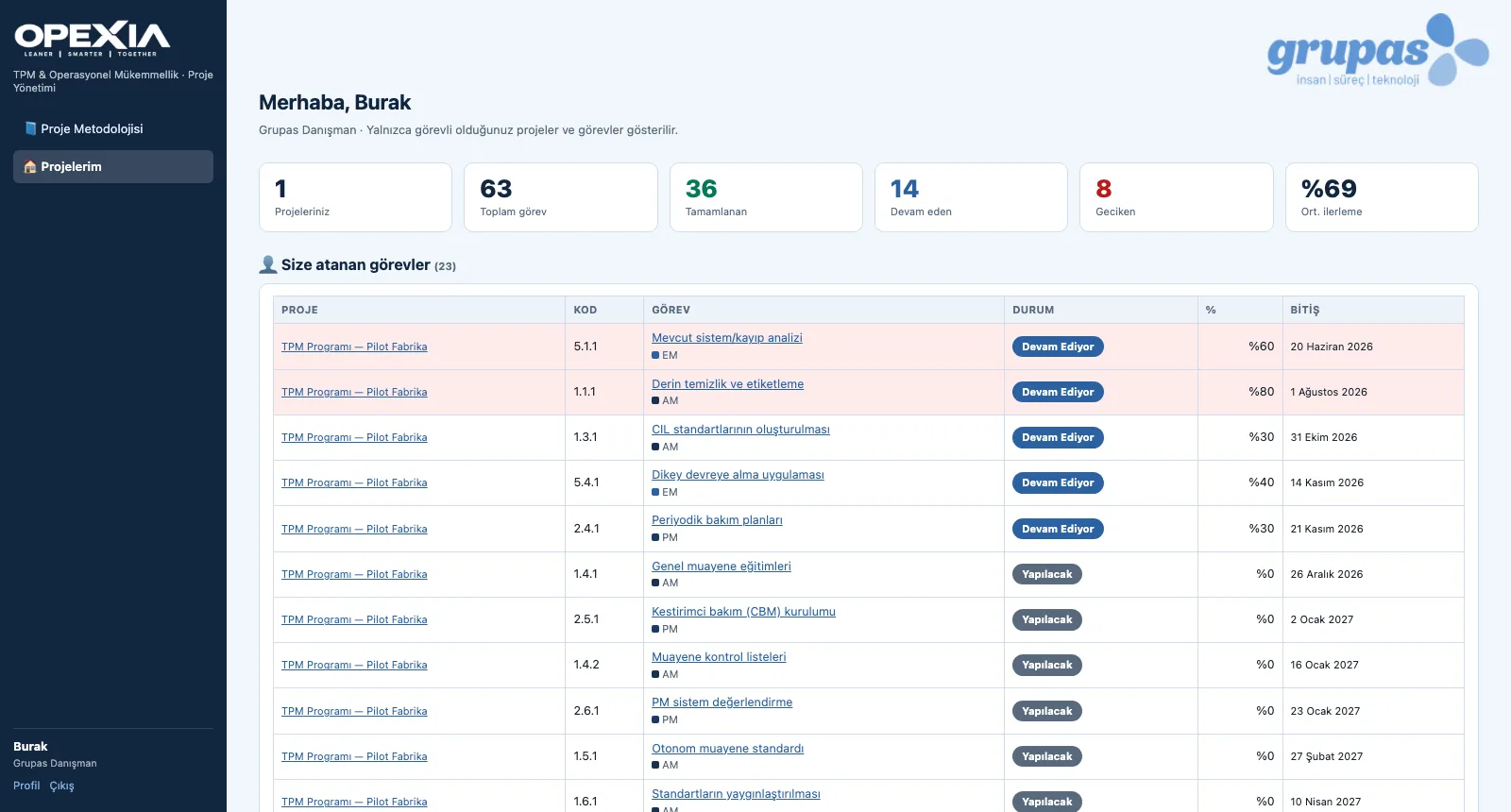
3. Use the personal dashboardA consultant or customer employee sees only the projects they work on and the tasks assigned to them.

TEAM · Explore

AI · Anticipate

grupas.ai Insights

Read the findings, ask questions, settle the assignments.
AI — Read the findings
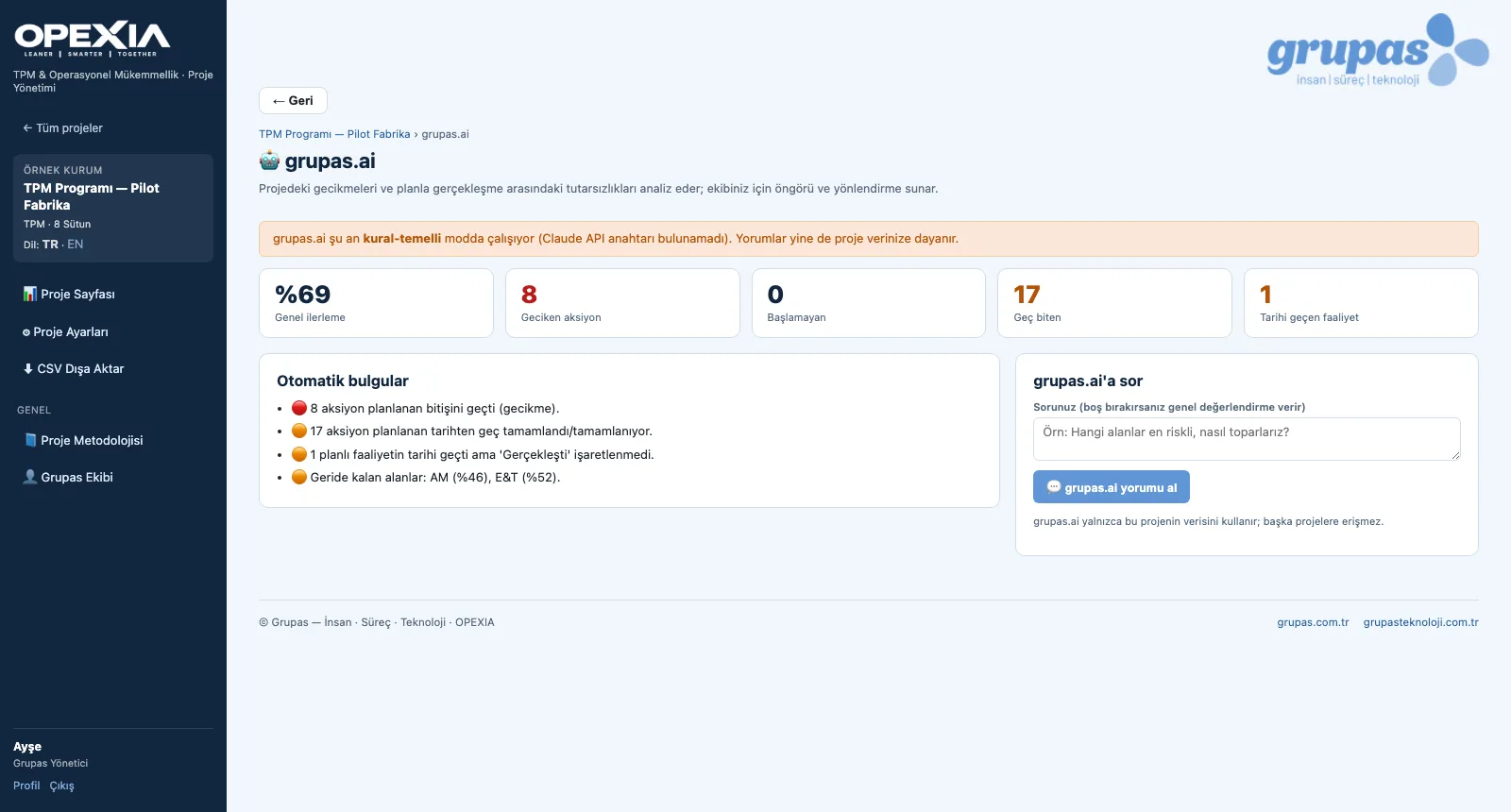
1. Read the findingsThe grupas.ai page lists the indicators and automatic findings — overdue actions, late finishes, lagging pillars.
AI — Settle the assignment
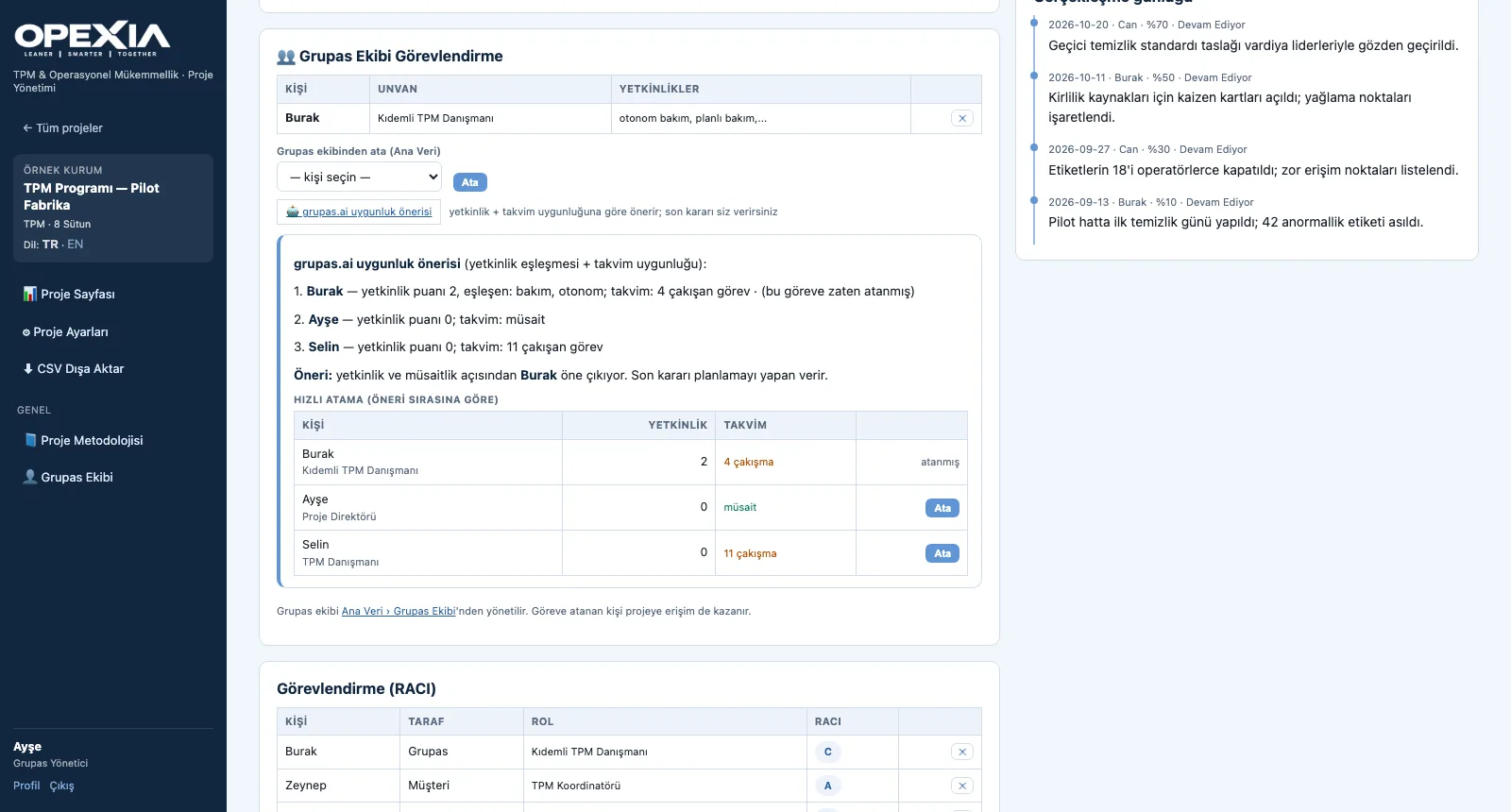
3. Settle the assignmentIn the action detail, the grupas.ai suitability suggestion ranks the Grupas team by competency and calendar; assign in one click.

AI · Explore

See your TPM program in OPEXIA

Write to us for a live walkthrough on a sample TPM program.

WhatsApp
GURU

GURU · OPEXIA assistant

Ask about features, licenses and the TPM method.

+90 538 390 29 78 info@grupas.com.tr
Hi, I'm GURU! I can answer your questions about OPEXIA and TPM (8 pillars, JIPM steps, the OpEx model, master plan).